Texture painting
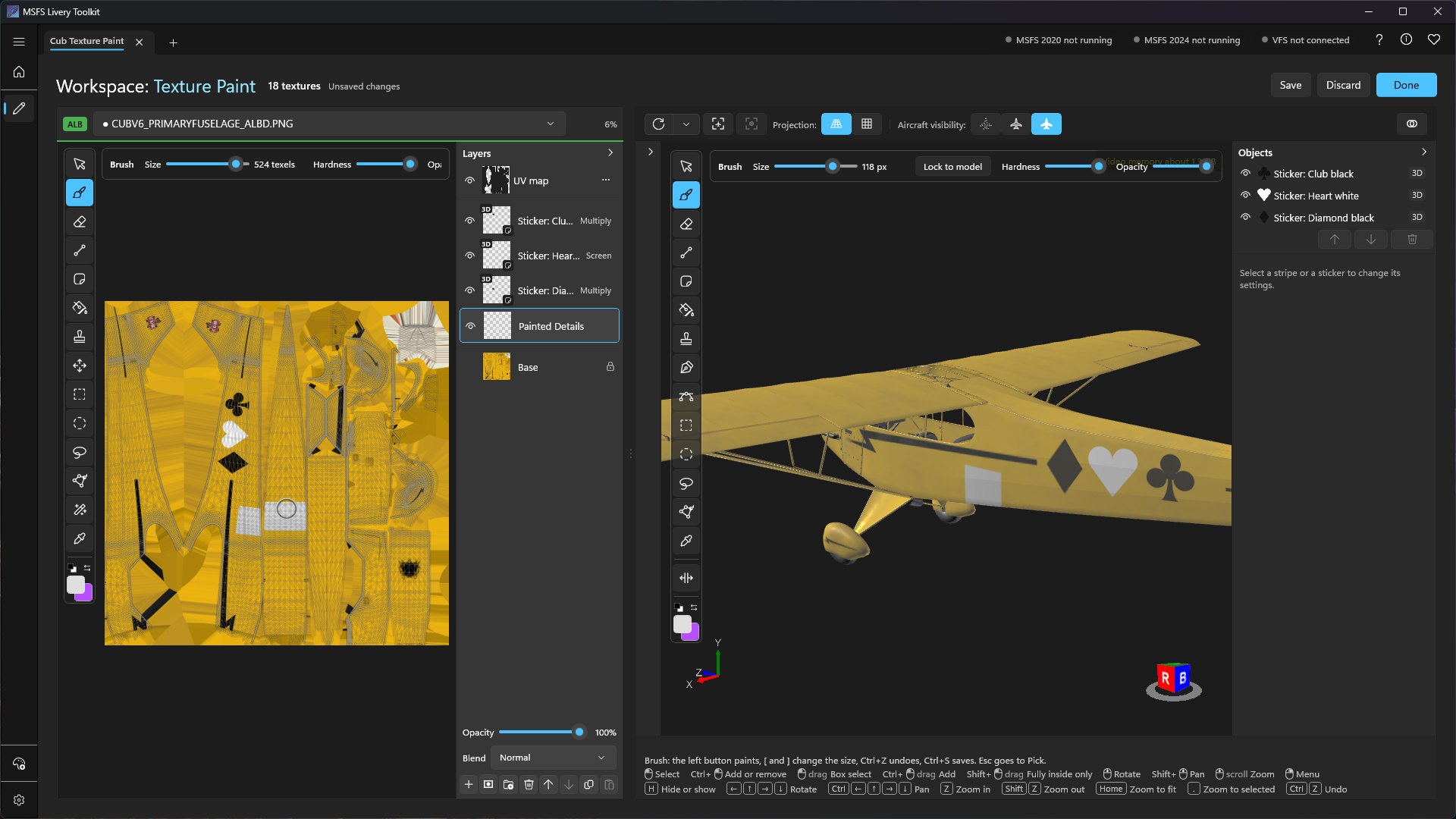
Texture Paint lets you paint your livery’s textures inside the toolkit, on the flat texture or straight onto the aircraft in 3D. You get layers, masks, groups, stripes drawn as curves, stickers, a fill, a clone stamp and selections, and your original images are never changed: the paint is kept as layers on top of them, and the compile uses the result.
- Entering and leaving
- Where your paint is kept
- The two views
- Tools
- Selections
- Layers, masks and groups
- Stripes
- Stickers
- Composite textures
- Tips
- What isn’t there yet
Entering and leaving
Select a texture in the Workspace tree and choose Paint texture, either at the top of the page beside Compile or in the texture’s Actions. Select several textures and it reads Paint 3 textures, for example. Right-clicking a texture or the Textures folder also offers Paint all textures, and right-clicking the aircraft in the viewport offers the texture under the pointer.
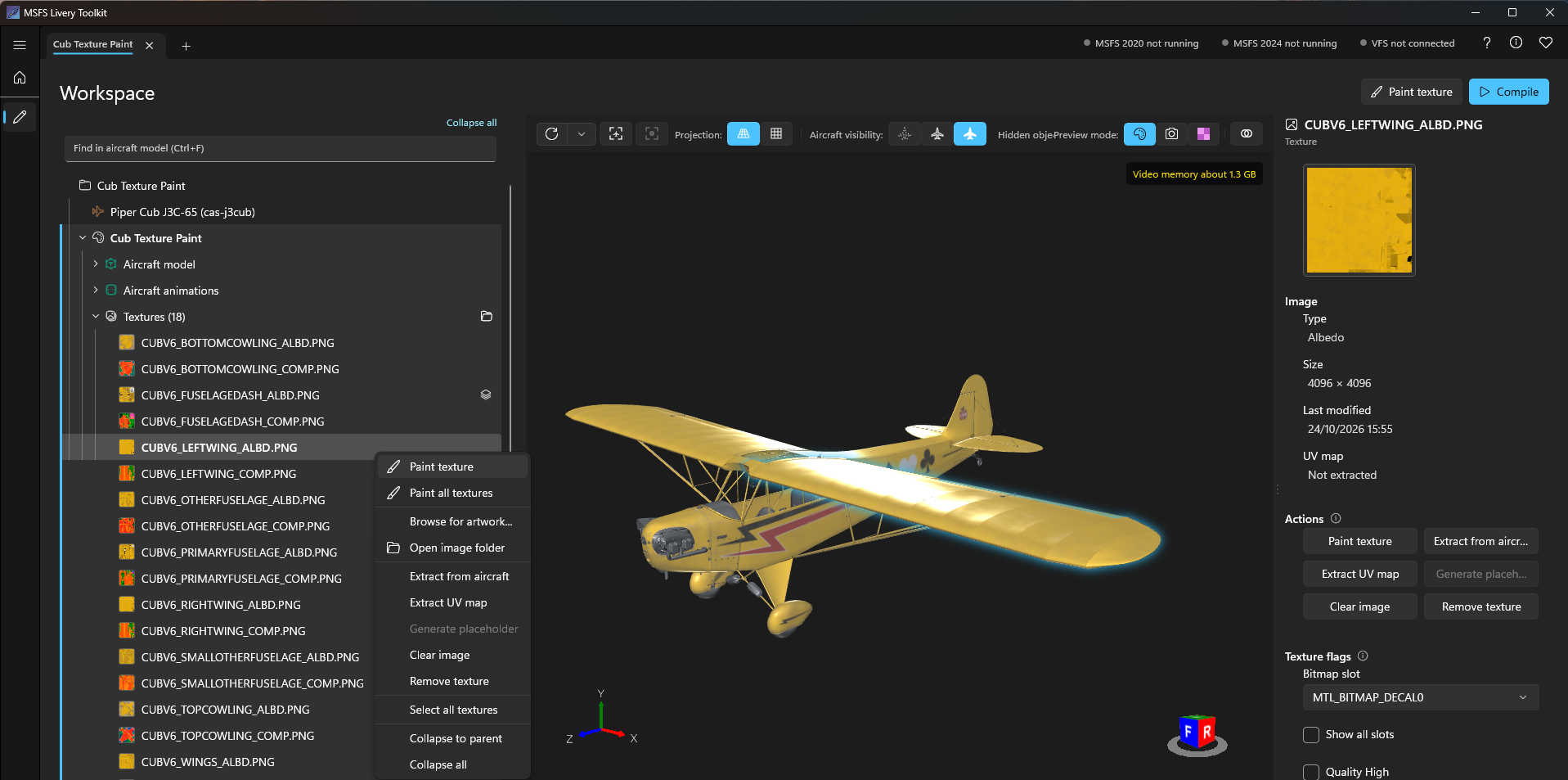
The Workspace changes to Texture Paint:
- The tree and the properties panel fold away. The 2D panel takes their place on the left, and the aircraft stays in 3D on the right. You can paint in either one, and both show every stroke as you make it.
- The page header reads Workspace: Texture Paint, with how many textures are open, whether there are unsaved changes, and Save, Discard and Done. The box above the 2D panel names the texture you are painting and switches to another.
- Compile, switching livery and closing the project are locked until you leave. If you try, the app asks whether to save.
Ctrl+S saves and stays in the mode. Done saves and leaves. Discard leaves and throws away everything since your last save, after asking. Esc steps back one level at a time: back to the Pick tool, then the selection clears, then it offers to leave.
Only the textures you chose are painted; the rest of the aircraft is masked, so a stroke never strays onto them. A texture can be painted when:
- It is an albedo or composite texture. Normal maps can’t be painted.
- It has an image. Choose Generate placeholder or Extract from aircraft first.
- The aircraft is shown in the viewport. Load the aircraft model first. Aircraft protected by the simulator have no 3D view, so they can’t be painted.
Where your paint is kept
Painting never changes your original image. The app keeps your paint separate and combines the two when it needs the finished texture.
- Your original image. The texture’s PNG stays exactly as it was. It opens in Texture Paint as a locked Base layer, and everything you paint goes on layers above it.
- The paint file. Layers, masks and groups are stored in
Paint\<texture name>.ltpaint, inside the livery’s workspace folder. It holds your paint only, not a copy of the base. - The combined texture. Each save also writes the base and your paint together as one image,
Paint\baked\<texture name>.PNG, with the same name as your original. The 3D view, the thumbnails and the compile use this one, so your paint reaches the compiled livery while the original stays as it is. It is 8-bit, even when the original is 16-bit. - Backups. The first time you save a texture in a session, its previous paint file is copied to
Paint\backups, and the last two are kept.
The paint file belongs to the toolkit. To keep painting in Photoshop or another editor instead, link the texture to that file as described in Creating liveries.
The two views
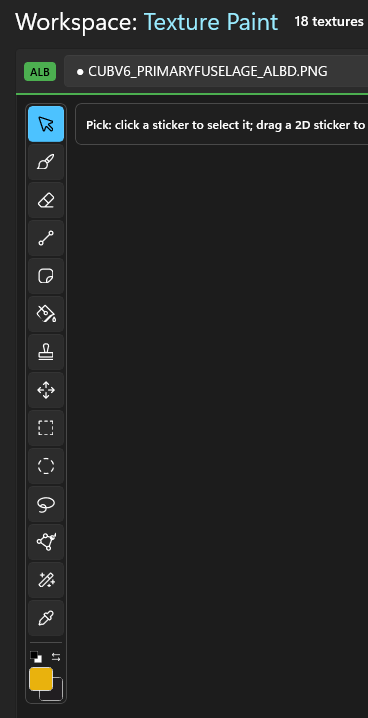
Each view has a toolbar of tools down its left edge, and an options strip above it for the selected tool. The colour pair sits at the bottom of the toolbar: the foreground colour is what paints, and the background colour is the second one, ready to swap in. X swaps them and D resets them to black and white. Select a swatch to choose a colour, and save colours you reuse as favourites.
In the 2D panel: the wheel zooms about the pointer, a middle-button drag pans, Home fits the texture and 1 shows it at 100%. A guide of the texture’s UV layout can be turned on over the image. It is never painted, saved or compiled.
In 3D: the view moves as in the Workspace. The brush paints onto whatever the pointer is over, so one stroke can carry on across every texture you are painting.
Three settings shape how a 3D stroke lands:
- Mirror (Y), at the bottom of the 3D toolbar, also paints the mirror image on the other side of the aircraft’s centreline.
- Paint through, in the brush options, paints the surfaces behind the one you can see as well. It is slower, so leave it off unless you need it.
- Lock to model, in the brush options, sets the brush to a real size on the aircraft in millimetres. Off, the brush stays the same size on the screen at any zoom.
Tools
Most tools are in both views, with the same key in each. Hover a tool for its name, key and what its modifiers do.
| Tool | Key | What it does |
|---|---|---|
| Pick | Esc | In 3D, selects a part and shows its texture in the 2D panel, selects a stripe or a sticker. |
| Brush | B | Soft or hard, with size, hardness, opacity and the foreground colour. Hold Shift to keep a stroke level or straight up. |
| Eraser | E | Takes paint away from the selected layer. |
| Line | U | Drag a straight line, painted when you let go. Shift locks it level or vertical, Esc cancels it. |
| Fill | G | Click a part of the texture (a UV island) to fill it with the foreground colour. In 2D, a click outside any island fills the selection, or the whole image. Shift+Backspace fills the 2D selection, or the whole image, from either view. |
| Clone stamp | S | Alt+click sets the source, then paint to copy from it. Works across layers and, in 3D, across textures. |
| Eyedropper | I | Click takes the colour under the pointer as the foreground, Alt+click as the background. |
| Sticker | K | Places an image from the sticker library. See Stickers. |
| Move | V | In 2D, moves the selected layer. The arrow keys nudge it, Shift by 10 pixels. |
| Pen | P | In 3D, draws a stripe as a curve on the aircraft. See Stripes. |
| Edit stripes | A | In 3D, selects and reshapes stripes you drew. |
Selections
Paint only lands inside a selection. Select tools in either view:
| Tool | Key |
|---|---|
| Rectangle | M |
| Ellipse (Shift for a circle) | Shift+M |
| Lasso (hold and draw) | L |
| Polygon lasso (click each corner, double-click or Enter to close) | Shift+L |
| Magic wand (2D only) | W |
In 3D a selection is a shape on the screen, and only the surface inside it takes paint. Each view keeps its own selection. Ctrl+D clears the selection in the view under the pointer, and Ctrl+Shift+I inverts it.
Layers, masks and groups
The Layers strip is the column on the right of the 2D panel. Below the list are the selected layer’s Opacity and Blend mode, then buttons to add, mask, group, delete, move, copy and paste.
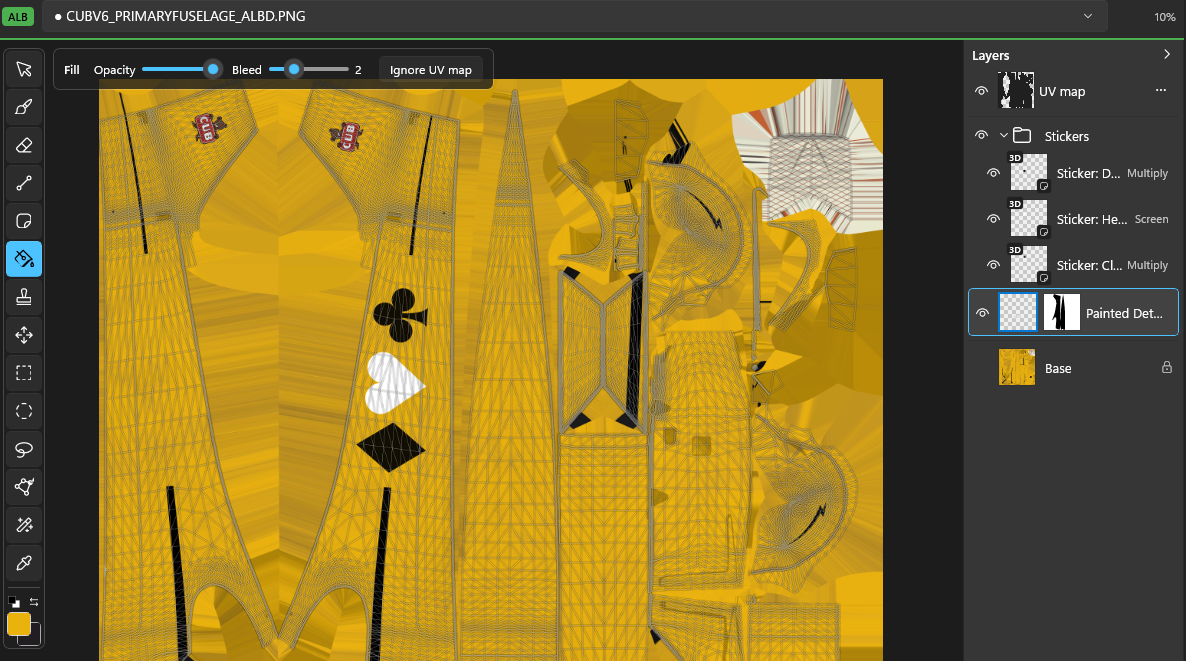
- Layers. Add, delete, show and hide them, and give each its own opacity and blend mode, such as Normal, Multiply or Screen. Copy a layer’s pixels with Ctrl+C and paste an image as a new layer with Ctrl+V. Drag a row to reorder it, or the up and down buttons.
- Masks. Add a black and white mask to a layer to hide part of it without erasing anything. Paint white to show and black to hide. Alt+click the mask button to start with the layer hidden. Alt+click a mask thumbnail to see and paint the mask on its own, and Ctrl+click it to turn the mask into a selection (Shift adds, Alt subtracts).
- Groups. Put layers in a group to move, hide or mask them together. Select a layer and press Ctrl+G to put it in a new group, or drag layers into a group. A mask on a group applies to everything inside it.
- UV map. The first row of the strip is the texture’s UV layout, shown as a guide.
- Stripes and stickers on layers. A sticker gets its own layer, marked 3D or 2D for where it was placed. A stripe is an object in the Objects strip beside the 3D view, which lists every stripe and sticker with buttons to move one up or down or delete it.
Every stroke, move and layer change is one Ctrl+Z step.
Stripes
The Pen draws a stripe straight onto the aircraft as a curve, which is how cheatlines and tail stripes are normally painted. A stripe stays editable, and it is drawn across every texture it crosses.
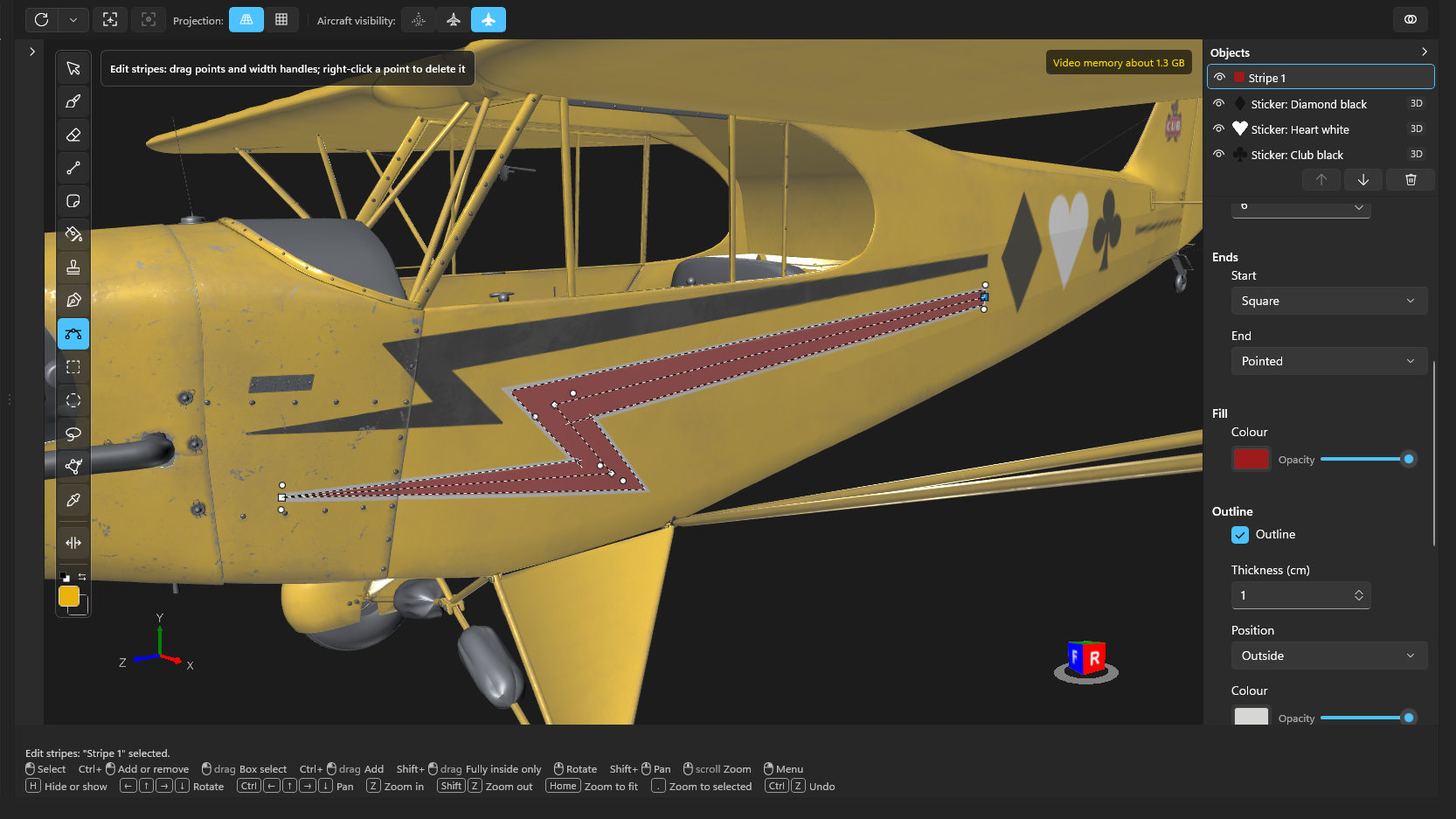
- Choose the Pen and click points along the aircraft. Alt+click makes a sharp corner. Shift keeps a point level or straight up from the last.
- Press Enter, double-click, or click the first point to finish.
- Switch to Edit stripes to drag points, change the width at any point so the stripe tapers along its length, click the curve to add a point, Alt+click a point to make it sharp or smooth again, and right-click a point to delete it.
The stripe’s properties set its fill colour and opacity, an optional outline (its thickness in centimetres, its position against the stripe, and its own colour) and its two ends, Start and End: Square, Triangular, Pointed (a true taper) or Forked (a V notch). New stripes start with the ends of the last one. With Mirror on, a new stripe starts mirrored.
Apply to lists the textures a stripe paints, and Finish also writes ambient occlusion, roughness and metalness values into the aircraft’s composite textures, under the stripe’s colour. Finish only reaches composite textures that are already in your livery, so add one from the Textures folder first.
Stickers
Stickers place a logo, badge or lettering image on the aircraft in 3D, or on the flat texture in 2D.
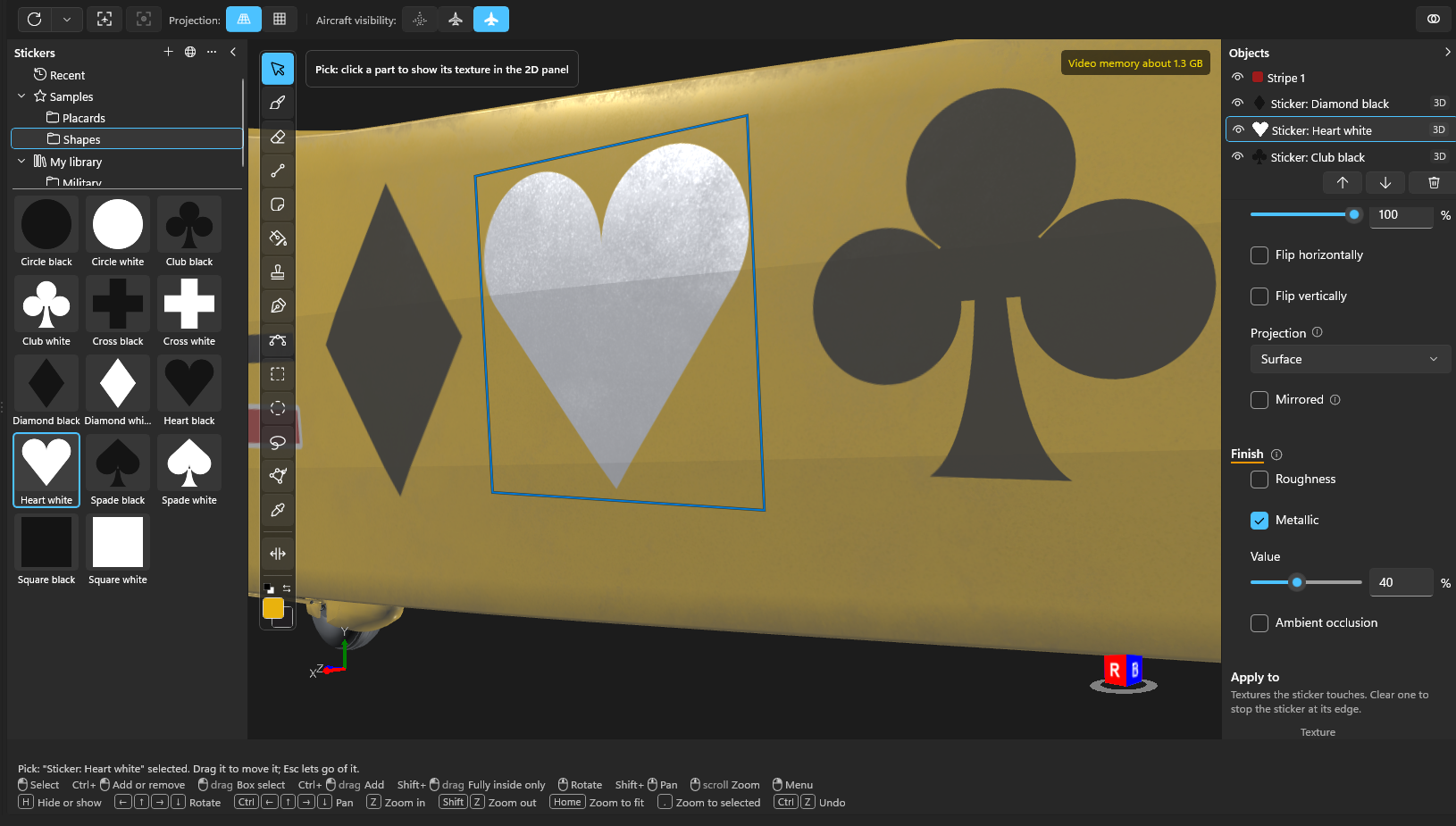
The sticker library is a pane at the left edge of the viewport. A folder tree lists Recent, Samples (plain shapes and placards that come with the app) and My library, with the images of the selected folder below. The buttons at the top add a folder or images, add from a link, and open more options. The app ships no national markings or insignia.
- Add images with Add images…, Paste image, or Add from URL…, which takes a link to an image or an SVG and a name. A Wikimedia file page link works too.
- Place one by choosing it, then clicking with the Sticker tool (K), or by dragging its tile onto the aircraft or the texture. With the Sticker tool, Ctrl+wheel sizes it before you place it and Shift+wheel turns it.
- Edit a placed sticker from the Objects strip: move, resize, turn, flip, mirror and delete it, and choose its projection. It follows its part if the model changes.
- Finish writes Roughness, Metallic or Ambient occlusion values under the sticker into the aircraft’s composite textures, as it does for stripes. Apply to lists the textures the sticker touches, and clearing one stops the sticker at its edge.
By default the library is the folder Documents\MSFS Livery Toolkit\Stickers. It is an ordinary folder, so you can add, rename and share images in Explorer. Change its location in Settings. Only images you add are stored there; Add from URL is the one place Texture Paint uses the network, and only when you ask. See Trust & safety.
Composite textures
A composite texture packs ambient occlusion, roughness and metalness into one image, one per colour channel. In Texture Paint you paint them as three separate grey images instead.
- Use the channel switch above the 2D panel to choose Ambient occlusion, Roughness or Metallic. White is full, black is none, and the colour pair becomes a pair of greys.
- Turn on Preview to show the channel in grey on the aircraft, unlit.
- Extract from aircraft per channel pulls the aircraft’s own values in as a new layer to work from.
- Only composites already added to your livery can be painted.
Choosing an albedo texture to paint brings its livery composite into the session too, when they belong to the same material, and the other way round. Each is still painted on its own.
Tips
- Save often with Ctrl+S. The first save of each session keeps a backup of your previous paint file.
- Work from a selection or a mask when you need a clean edge. They are quicker to correct than a stroke.
- Turn on Paint through only when you mean to. On a big texture it is much slower than painting what you can see.
- When you are happy, leave with Done, then compile as usual. The compile uses the combined texture, so your original PNG is left untouched.
What isn’t there yet
- Painting isn’t available for aircraft the simulator protects.
- One brush stroke doesn’t paint albedo and composite channels together. Switch channels to paint each.
- No layer styles (such as colour overlay), guides or rulers, and you can’t select several layers at once.
- Moving a linked layer up or down in a document with groups doesn’t restack it in the aircraft’s other textures.